

Back to Super Dodo Terminal for the main window, toolbar, anchors, gates, and map freeze.
New here? Work through Getting Started first (connect, anchors, first gate open).
Overview
When you click an Island Tile it opens its Island Detail Panel:
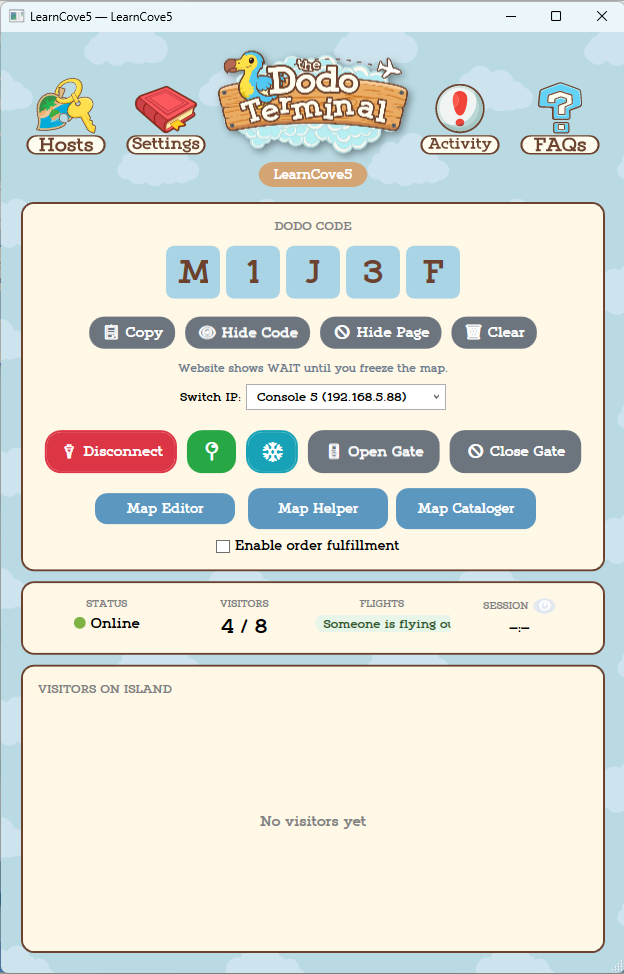
This panel is where all of your main tools live. The sections below go through the menus, logs, FAQs, and gate controls.
What you see on the panel
- Large Dodo code with a row of actions:
- Copy — Copies the code.
- Hide Code — Hides the code on the detail panel only; the island page can stay visible.
- Hide Page — Hides or shows this island on the website (solo and team).
- Clear — Clears the displayed Dodo code manually.
- Hint under the code: the website can show WAIT until you freeze the map (treasure-island style hosting).
- Switch IP dropdown on the panel (quick pick; full IP list is also in Island Settings and Profile Viewer).
- Connect — Turns into Disconnect (red) when you are connected.
- Anchors (📍) — Opens Anchor Setup (Anchors below). From there you can open Connection & timing for the same profile.
- Freeze — Map freezing (Map freezing below).
- Open Gate / Close Gate / Abort — Gate automation and Open and close gate below.
- Top-right FAQ icon tooltip is How to Use (Tutorial) — opens
Tutorial.txtnext to the app if it exists.
Status strip
- Connection status (connected, disconnected, etc.)
- Visitor count (e.g. 0/8)
- Flight status — Shows when someone is flying in or out
- Session timer — How long the gate has been open
Anchors
Anchors are saved positions that SDT uses to automate gate control. Your character teleports between them to open and close the gate.
The 4 anchors
| Anchor | Where to stand |
|---|---|
| Spawn / Drop | Where your character ends up after automation |
| Airport Entrance | Outside the airport, facing diagonally toward the door |
| Orville Counter | Inside the airport, at the counter directly facing Orville |
| Airport Exit | Inside the airport, in front of the walkway that leads out |
Anchors 3 and 4 (inside the airport) are consistent on every island. Focus on 1 and 2 matching your layout.
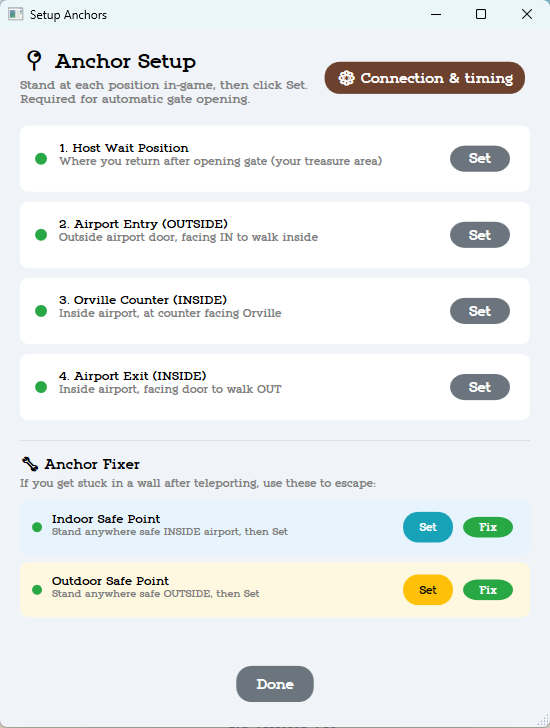
Setting anchors
- Click the Anchor button on your island tile (or set them from the Profile Viewer — see Getting Started)
- Walk your character to each position in-game
- Click Set — the dot turns green
- When all 4 are green, Save & Close
Anchor fixer (if you get stuck)
If your character teleports into a wall or gets stuck:
- Set safe points first (while you're in a good spot):
- Stand inside the airport, click Set Indoor
- Stand in a clear outdoor area, click Set Outdoor
- When stuck, click Fix Indoor or Fix Outdoor to teleport somewhere safe
These safe points save to your profile so they're always ready.
Reusing anchors between maps
If you rotate between treasure island layouts, your anchors will work as long as:
- Your spawn/drop area is in the same spot on both maps
- The airport entrance path is clear on both maps
If the layouts are very different, set new anchors for the new map.
Gate automation
Opening the gate
- Make sure your character is standing outside (not in a building) and the game is running
- Click Open Gate
- Don't touch your controller — you don't have to remove controllers; a virtual-controller option is planned
- Watch the Activity Log for progress
- When done, your Dodo code appears
The program teleports to the airport, walks in, talks to Orville, opens the gate, reads the code, and returns to your spawn point — all automatically.
Closing the gate
Click Close Gate. Same rule: don't touch the controller.
Aborting
If something goes wrong, click Abort. Then manually press B on your controller to exit any dialogue, fix the issue, and try again.
Auto-recovery
If your gate crashes (a visitor disconnects badly), SDT can automatically reopen it. Turn on Auto-Restore on crash (get new dodo) in Island Settings (tile ⚙) under BEHAVIOR.
The Recovery toggle on the main SDT toolbar is a global safety switch — it pauses auto-recovery across all islands. Use it when you want to stop everything from auto-recovering (like during maintenance).
Timing settings
If gate automation is too fast or too slow for your Switch, adjust these in Island Settings (expand GATE OPENING (Advanced)):
| Setting | What it controls |
|---|---|
| Console Speed (slider under CONSOLE SPEED) | Extra delay between automation steps; the window shows the current value in ms (Fast ↔ Slow slider). |
| Internet wait (sec) | Wait for the Switch to get online at the airport; UI suggests roughly 60–180 seconds range. |
| Airport exit wait (sec) | Wait after leaving the airport building; UI suggests roughly 20–30 seconds. |
You can also open Connection & timing from Anchor Setup (same profile). That window adds Extra delay (ms), Internet connection wait (seconds), Airport exit/enter wait (seconds), and Map freeze rate (ms) with its own help text (advanced; tied to how often the map refresh runs during freeze).
Open and close gate
Expandable reference for modes on the main gate buttons (see Gate automation above for the default step-by-step).

Auto Mode — Runs the full automation flow; if the island crashes it tries to auto-restore the connection.
Manual Mode — Requires you to open and close gates manually in-game or by clicking Open/Close gate. Can be used without restore mode.

Standard Close — You click "Close Gate" and the bot closes the gate for you. Sometimes hangs on the final Orville message. Low priority to fix right now.
Abort — Cancels current gate opening or gate closing process. Only shows when the bot is actively opening or closing the gate.
Map freezing (treasure islands)
Map freezing is what makes treasure islands work — items respawn after visitors pick them up.
How it works
- The program keeps refreshing the map in the game's memory
- Visitors pick up items normally (items go to their pockets)
- A moment later, the same items "respawn" on the ground
- Visitors get unlimited items!
Starting and stopping
- Click the Freeze button on the detail panel — it fills in when active
- Click it again to stop
Using a map file (recommended)
For the most reliable freezing, use a .nhf3 map file from ACNHPokerCore:
- Open ACNHPokerCore, connect to your Switch
- Set up your island with the items you want
- Save the map as a
.nhf3file - In SDT, open this island’s Island Settings (tile ⚙) → expand MAP FREEZE (Treasure Islands) → set Map file path (.nhf3)
The program uses the saved file instead of capturing live, which is more stable and consistent.
Auto-freeze
You can have the map freeze automatically when you connect: Island Settings → MAP FREEZE → Auto-freeze map on connect.
Generate freeze map
SDT can also create a freeze map file from your current live map — Generate Freeze Map in Island Settings → MAP FREEZE.
Freeze delay (ms) — not a simple “speed” knob
In Island Settings → MAP FREEZE, the field is labeled Freeze delay (ms). The app warns that this is the pause between writes, not a frequency dial:
- Lower values → writes happen more often → faster respawn feel → can overload the game or connection.
- Higher values → writes less often → safer for online play.
- Default 300 ms is the starting point; the UI warns against going below 100 ms except for careful offline testing with backups.
There is a separate Map freeze rate (ms) in Connection & timing (opened from Anchor Setup) with its own explanation — treat both as advanced.
What can be frozen
- Dropped items, placed furniture, DIY recipes, most ground items
What can't be frozen
- Trees, flowers, rocks, buried items
Visitor tips
Tell your visitors:
- Pick up items normally
- Wait a second or two between pickups
- Check their pockets — items are there even though they "stay" on the ground
Map tools
SDT has several tools for working with your island map (opened in context for that island).
Map Editor (Dodo Editor)
Opens the built-in map editor (powered by ACNHPokerCore) where you can view and edit items on your island map directly.
Map Helper
Export a visual image of your island map. Options include:
- Custom tile size
- Transparent or grass background
- Grid overlay
- Item overlay (shows items on the map image)
Great for sharing your island layout or creating graphics.
Map Cataloger
Creates an interactive catalog of items on your island for your website. Visitors can browse what's available.
Island menus
The island detail panel includes the Host Menu, Island Settings (⚙ on the panel — not the header gear), Activity Log, and the FAQ / tutorial icon. This panel was originally a standalone app that was later folded into Super Dodo Terminal.
Main menus

Island-specific hosting controls and actions

Per-profile behavior, OBS files, website lock, freeze, timing (window title: Island Settings)

Recent actions, automation events, and status history

Tooltip: How to Use (Tutorial) — opens Tutorial.txt beside the app when present
Host menu
Click the Host Menu icon
()
(context menu tooltip: Host Menu (Settings, Connections, Timer)). Items appear in this exact order in the current Super Dodo Terminal build:
- Load Profile — Assign which profile this island tile uses.
- Manage Switch IPs — Add, edit, or remove saved Switch addresses (same list you pick from elsewhere).
- (separator)
- Island Host Details — Opens Island Host Information (see below).
- Host Rules & Strikes — Overstay alerts and strike system (Host rules section on this page).
- Discord Bot — Opens Discord Bot Settings with tabs (see below).
- Connections (API/Webhooks) — In this build, choosing this opens the same Island Settings window as the tile ⚙ icon (per profile), not a separate API-only screen.
- Twitch Settings — Currently shows a coming soon message in this build.
- Facebook Host Mode — Currently shows a message that full Facebook Host Mode is in the full product and suggests Discord webhooks or the Web API for integration in this build.
- (separator)
- Timed Giveaway — Countdown window with quick times, custom h/m/s, auto-close gate, and sound (Timed giveaways below).
- Test Connections — Sends sample test data to each enabled connection (for example Discord webhook test); watch the Activity Log for ✅ / ❌ lines.
- (separator)
- SDT Features — Placeholder message in this build (SDT-specific features will be available here).
Deeper Discord webhook and bot concepts: Discord & Modmin.
Discord Bot Settings (window)
Title: Discord Bot Settings. Subtitle in the app: advanced Discord integration (DMs, moderation, queue — same family as Dodo Terminal).
Tabs (left to right):
| Tab | What it’s for |
|---|---|
| Setup | Bot token (show/hide), Guild ID, Test Connection, optional presence (Online / Idle / DND / Invisible + activity text), first-time setup steps. Using HostHelper Unified Bot? callout: leave token empty here and set the token in HostHelper if one bot serves all islands; add a token here only for a separate bot per island. |
| Channels | Refresh Channel List; Announcements (gate open/close, crash recovery, etc.); Queue (where visitors join); Registration (`!register Name |
| Announcements | Toggle gate, visitor, and other events (open/close/crash/recovered, arrive/leave, island full/space, timer, queue open/close); fancy embeds vs plain text; event images; ping role on gate open; Configure Event Images; Facebook post link field + !link / !clearlink commands with Host Command Role; custom message templates per event with placeholders {dodo} {island} {host} {visitor} and Reset All to Defaults. |
| Queue | Enable Queue System; max visitors at once; queue cooldown; join method (react ✈️, !join, or both); DM dodo; auto-advance; position DMs; registration required; AFK timeout minutes. |
| Moderation | Strike system (max strikes, alerts to log channel, DMs), PLAYER–DISCORD LINKING (!register channel, verified role, Manage Player Links), and other items on the tab. |
| Roles | Refresh Role List; assign Queue access, VIP (skip to front), Banned (cannot join / see dodo), and Ping role (gate open). |
| Permissions | Step-by-step invite URL guide: developer portal, intents (Message Content required, Server Members for roles), OAuth2 bot scope, and the exact Bot Permissions checklist (Send Messages, Embeds, Attach Files, History, Reactions, Manage Messages, Ban/Kick, Manage Roles, Change Nickname), plus channel permission tips. |
Island Host Details (window)
Opens from Island Host Details in the Host Menu. Window title: Island Host Details. Header: Island Host Information — This info is shared via API/webhooks for websites and Discord.
- Website profile mode — Dropdown: Solo Website or Team Website (with in-window help text that updates when you change it).
- Island host — Single line shown as the host name on the site / feeds.
- Island name — Display name; can differ from the shortened in-game name. Blank falls back to the real island name from the game.
- Boarding pass image (per-island override) — Select Image / Clear; preview with a draggable, resizable Dodo code overlay (corner thumb to resize).
- Optional island page icon + text — Icon path + rich text helpers (Bold, Italic, Underline, Line Break); optional Island Facebook link URL for the website island page icon area.
- Island map image — Select Image / Clear; supports PNG, JPG, or SVG (SVG is converted to PNG). Checkbox: This island doesn't need an image map — when on, the published page hides the static map image and points visitors to the interactive catalog map instead.
Save / Cancel at the bottom.
Island Settings (per profile / tile)
Click the settings icon on the island detail panel (⚙ next to the Host icon — tooltip Settings). The window title is Island Settings (header text Settings).
This is not the same as General Settings in the main header (app-wide tunnel, HostHelper launch, etc.) — see Super Dodo Terminal → General Settings (whole app).
You must have a profile assigned to the tile; the window edits that profile’s Switch row and options.
Top: Switch IP + Port
Compact row: Switch IP (dropdown, editable) and Port (default 6000 for most users).
FILE OUTPUT (for OBS)
- Save Dodo code to file + path
- Save visitor list to file + path
- Twitch Integration — Disabled placeholder button in this build (reserved for future Twitch support).
BEHAVIOR
- Auto-Restore on crash (get new dodo)
- Villager Modes (can combine for TI / order islands):
- Request Mode (uses House 0 for injecting)
- Cycle Mode (auto-injects from visitors.txt) + Edit visitors.txt (Cycle List) — one name per line; SDT auto-pairs to the closest valid villager.
- Queue Mode — Works for treasure island, order island, or combined setups (see UI note).
- Instant Text — Speeds up in-game dialogue during automation.
(Some builds hide Order Mode / exclusion zones / stay-time UI here when those controls live under the order panel — if you don’t see them, use Order Panel → Settings.)
WEBSITE ACCESS
- Password lock this island page + Password field (leave blank to keep the page unlocked).
- Hide this island from website (solo + team)
MAP FREEZE (Treasure Islands) — expander
- Auto-freeze map on connect
- Generate Freeze Map — Read live map from the Switch and save a
.nhf3template. - Map file path (.nhf3) + browse button
- Freeze delay (ms) — See Freeze delay (ms) under Map freezing above (important safety text in the app).
AIRPORT ONLY MODE — expander
- Stay in airport after opening gate — Stays inside for greeter-style hosting.
- Play idle animations — Optional; Play every [n] minutes; skips while visitors are flying in or out.
CONSOLE SPEED — expander
Slider Fast ↔ Slow with a live readout (Extra delay: … ms).
GATE OPENING (Advanced) — expander
- Internet wait (sec) — Online connection wait at airport.
- Airport exit wait (sec) — After walking out of the airport.
Bottom bar
- Open Logs Folder — Crash logs and warnings folder.
- Cancel / Save
Activity log
Click the Activity Log icon
()
to view recent island events.

What you see
Shows when each event happened.
Shows what action or automation event occurred.
Helps identify what the island is doing or where a problem happened.
Common log entries
- Connected — SDT connected to the Switch successfully
- Disconnected — SDT lost connection or was manually disconnected
- Gate Opened — The gate opened successfully and a Dodo code was read
- Gate Closed — The gate closed successfully
- Restore Triggered — Auto-restore or recovery behavior started
- Freeze Enabled — Map freezing was turned on
- Freeze Disabled — Map freezing was turned off
Inline vs separate window
The log can show inline on the island panel or in a separate window (set under app-wide General Settings in the header). The separate window supports:
- Copy All — Copy the entire log
- Clear — Empty the log
- Always on Top — Keep the window above everything
- Auto-Scroll — Automatically scroll to the latest entry
You can also open the Logs Folder from island tile settings to find crash logs and other saved data.
FAQs / Tutorial
Click the FAQ icon
()
(tooltip How to Use (Tutorial)). If Tutorial.txt exists next to the SDT program, it opens in your default editor/viewer; otherwise you may get a not-found message.

Common topics
- Why won’t my island connect? — Troubleshooting connection problems
- Why didn’t my gate open? — Common gate-opening issues
- Why is my Dodo code blank? — Code read/visibility issues
- What does freeze do? — Explains map freezing behavior
- Why did the website hide my code or island? — Covers visibility controls
Visitor list and tracking
Visitor list
Shows everyone currently on your island:
- Player name
- How long they've been visiting
Right-click a visitor for:
- Add Strike — Record a warning
- Ban Player — Ban them
- Link Discord ID — Connect them to their Discord account
- Send DM — Send a Discord message (requires bot setup)
What you see
- Visitor list — Who's on the island and how long they've been there
- Visitor count — e.g. 3/7 (three visitors, seven total spots)
- Flight status — "Someone is flying in!" or "Someone is flying out!"
- Session timer — How long the gate has been open
Host rules
Host Menu → Host Rules & Strikes opens the Host Rules window (overstay + strikes).
Overstay alerts
Window section: VISITOR OVERSTAY ALERT.
- Enable overstay alerts
- Alert after: minutes (quick buttons 15m, 30m, 1hr or type your own)
- Alert message — Supports placeholders
{visitor},{time}
Strike system
Window section: STRIKE SYSTEM.
- Enable strike tracking
- Max strikes before ban — Quick buttons 2, 3, 5 or custom
- Strike message (sent to Discord) and Ban alert message — Placeholders
{visitor},{strikes},{max},{reason} - View Strike List — Opens the strike list manager
Strikes save to your profile and persist between sessions.
Strike list
View all tracked players, their strike counts, and ban status. You can add/remove strikes, ban/unban, or clear everything.
Timed giveaways
Host Menu → Timed Giveaway opens Timed Giveaway.
- Large 00:00:00 display and status line
- QUICK SET: 5 min, 10 min, 30 min
- CUSTOM TIME: hours, minutes, seconds fields
- OPTIONS:
- Auto-close gate when timer ends
- Play sound when timer ends (on by default)
- Start / Stop / Close
Facebook host mode
Host Menu → Facebook Host Mode in this build shows an info box: full Facebook Host Mode is described as available in the full version, and you are pointed at Discord webhooks or the Web API for similar automation here.
What's next
- Super Dodo Terminal — Main grid, toolbar, platform tags, app-wide settings, backups
- Getting Started — First-time setup
- Discord & Modmin — Bot, webhooks, queue
- Your Website — How islands appear online
- Troubleshooting — Connection and gate problems
